Wednesday, July 15, 2020

How to Install Docker on Linux Ubuntu

1- Update Ubuntu's local database:


sudo apt-get update

2- Download Docker's dependencies:


sudo apt-get install apt-transport-https ca-certificates curl software-properties-common -y

3- Add Docker's GPG key:


curl -fsSL https://download.docker.com/linux/ubuntu/gpg | sudo apt-key add -

4- Install Docker's repository:


sudo add-apt-repository "deb [arch=amd64] https://download.docker.com/linux/ubuntu  $(lsb_release -cs)  stable"

5- Update Ubuntu's repositories:


sudo apt-get update

6- Install Docker:


sudo apt-get install docker-ce -y

7- Add your user to the docker group:


sudo usermod -aG docker $USER

8- Log out and log back in so that the changes made take effect:


newgrp docker


Friday, June 26, 2020

How to Install Apache Spark on Linux Ubuntu

First of all, you need to have Java already installed; if you don't I recommend this article to install Java. Then you will need to install Scala:

Once done installing Scala, you will need to download the Apache Spark binaries archive and install it:

Afterward and in order to avoid moving to Spark's bin directory every time you want to interact with it, add Spark's bin directory to the PATH system's variable. To do so open .bashrc script vim .bashrc and add the following lines in the bottom of the file:

That's it, you only have to apply the last modifications running source ~/.bashrc

Monday, June 22, 2020

How to Install MongoDB on Linux Ubuntu 18.04

1- Import the MongoDB public GPG Key:
2- Create the /etc/apt/sources.list.d/mongodb-org-4.2.list file for Ubuntu 18.04 (Bionic):
3- Reload the local package database:
4- Install MongoDB:
5- Start MongoDB service:
6- Start a Mongo shell:
8- Create users database:
9- Create an adminstrator user:
10- Exit the Mongo shell:
11- Open the MongoDB configuration file sudo vim /etc/mongod.conf and edit the following parameters:
12- Restart MongoDB process:

How to Install Apache Kafka on Linux Ubuntu

In order to install Apache Kafka you should have Java installed and JAVA_HOME environment variable set; if not follow the first instructions of this article.
1- Download Zookeeper:

2- Extract the archive content:

3- Create Zookeeper configuration file from the sample provided:

4- Open the startup script file vim ~/.bashrc and add the following content:

5- activate the new path settings:

6- Start zookeeper service:

7- Download Kafka:

8- Create an installation folder for Kafka:

9- Extract the archive content:

10- Open the startup script file vim ~/.bashrc and add the following content:

11- activate the new path settings:

12- Create a shortcut to Kafka configuration file:

13- Edit listners parameter within Kafka configuration file i.e.:
listeners=PLAINTEXT://thedevopsnerdworld.com:9092
14- Start Kafka service:

Saturday, June 20, 2020

The Best Way to Install Java JDK and Eclipse IDE on Linux Ubuntu Desktop

In order to install Java on your ubuntu, I assume you are working from home directory cd ~ or cd $HOME which in my case is "/home/omar" or use sudo su - to switch to root user and avoid typing sudo everytime you need root privilege. To start, open a new terminal Ctrl+Alt+T and run the following command: then run the command below to find JDK installation directory: Afterward, open the startup script file vim ~/.bashrc and add the following lines in the bottom: then run the following command to activate the new path settings immediately: Now that you have java installed, go to Eclipse IDE download page: https://www.eclipse.org/downloads/download.php?file=/oomph/epp/2020-06/R/eclipse-inst-linux64.tar.gz and download the Eclipse installer archive. Once downloaded, extract the archive content by running the command below: After extracting the installer, open vim ~/eclipse-installer/eclipse-inst.ini file and append the following configuration: then launch the installer: cd ~/eclipse-installer/ && ./eclipse-inst and choose Eclipse IDE for Enterprise Java Developers. Once you have Eclipse installed, open its configuration file vim ~/eclipse/jee-2020-06/eclipse/eclipse.ini and add the following: now, create a shortcut for eclipse by creating a new file vim ~/eclipse.desktop and inserting the following content into it: then install the shortcut: That's it, congratulation! from now on you can find your Eclipse among Ubuntu applications.

Bonus: 

 You can also install Lombok utility within eclipse; all you have to do is go to Lombok download page: https://projectlombok.org/download and download the jar. Once the jar downloaded, launch it by running java -jar lombok.jar and specify the eclipse.ini file location /home/omar/eclipse/jee-2020-06/eclipse/eclipse.ini

Tuesday, October 29, 2019

How To Create A Lambda Function On AWS With Python That Creates An SQS Every Morning And Deletes It Every Night

First of all, go to Lambda service page on AWS, then create a function with a role having AmazonSQSFullAccess policy:


Afterward, inject the following code into the function:

import boto3

sqs = boto3.client('sqs')

def lambda_handler(event, context):
    if 'morning' in event['resources'][0]:
        # Create queue if morning event
        sqs.create_queue(
            QueueName='testEnvQueue',
        )
        print('Creating queue')
    if 'night' in event['resources'][0]:
        # Delete queue if night event
        QUEUE_URL = sqs.get_queue_url(
            QueueName='testEnvQueue'
        )['QueueUrl']
        sqs.delete_queue(
            QueueUrl=QUEUE_URL
        )
        print('deleting queue')

Next, at the top of the page hit Add trigger button:


And select CloudWatch Events, then select Create a new rule. In the Rule name field, make sure your name contains 'morning' and in the Schedule expression field enter something like rate(2 minutes) which will create an SQS queue named 'testEnvQueue' every 2 minutes just for the purpose of testing:


 Finally, add another CloudWatch event to simulate night to delete the created queue.

Monday, October 28, 2019

Interacting with AWS SQS Buffer Using Python: Example

First of all, make sure you have AWS CLI installed on your local machine by checking the existence  of both files "~/.aws/config" and "~/.aws/credentials":

 ~/.aws/credentials:

[default]
aws_access_key_id = XXX
aws_secret_access_key = XXXXXX

~/.aws/config:

[default]
region = us-east-2
output = text

In case you did not find them, check out the links at the bottom of this article. Then, create an SQS queue by executing the following Python's script:

#!/usr/bin/python
# -*- coding: utf-8 -*-
import boto3
sqs = boto3.client('sqs')
sqs.create_queue(QueueName='translation_requests.fifo',
                 Attributes={'FifoQueue': 'true'})

Afterward, you should find the SQS queue named 'translation_requests.fifo' listed on the AWS console as follows:


Now that your queue has been created, create a Python list containing a list of phrases inside a Python file named 'phrase_list.py' as follows:

phrases = [
    "Hello!",
    "How are you?",
    "What’s up?",
    "I’m fine. And you?",
    "Please.",
    "Thank you.",
    "Thank you very much.",
    "You’re Welcome",
    "Goodbye.",
    "See you soon.",
    "Cheers!",
    "Excuse me.",
    "I’m sorry.",
    "What’s your name?",
    "My name is",
    "Nice to meet you.",
    "Where are you from?",
    "I’m from",
    "I’d like to introduce my friend",
    "How old are you?",
    "I’m 33 years old.",
    "What do you do for a living?",
    "I’m a doctor",
    "What do you do for fun?",
    "What are your hobbies?",
    "Do you speak English?",
    "Could you please speak a little slower?",
    "Could you write that down?",
    "Could you repeat that?",
    "How much?",
    "Can I pay by credit card?",
    "Here you go.",
    "What time do you open?",
    "Do you have anything cheaper?",
    "It’s too expensive.",
    "Here’s my passport.",
    "Do I have to change trains?",
    "Do I need a seat reservation?",
    "Is this seat taken?",
    "Could you call me a taxi?",
    "Could you let me know when to get off?",
    "Could you recommend a good restaurant?",
    "What would you recommend?",
    "What are some local specialties?",
    "What is the special of the day?",
    "Could I see the menu, please?",
    "That was delicious!",
    "This isn’t what I ordered.",
    "Can I buy you a drink?",
    "Let’s have another!",
    "Where can I find tourist information?",
    "Do you have a map?",
    "Can you show me that on the map?",
    "What is the entrance fee?",
    "What is that building?",
    "What is there to see around here?",
    "I have a reservation.",
    "Could I see the room?",
    "I’d like to stay for five nights.",
    "Is breakfast included?",
    "Could I get a different room?",
    "Is there a restaurant here?",
    "Is there pharmacy nearby?",
    "Can I use your phone?"
]

Then, create a python script to push the previous list of phrases into your SQS queue as follows:

#!/usr/bin/python
# -*- coding: utf-8 -*-
import boto3
import json
import random
import time
import uuid

from phrase_list import phrases

sqs = boto3.client('sqs')

QUEUE_URL = sqs.get_queue_url(QueueName='translation_requests.fifo'
                              )['QueueUrl']


def send_requests_to_sqs():
    message = {'phrase': random.choice(phrases),
               'lang_code': random.choice(['de', 'es', 'fr'])}

    json_message = json.dumps(message)
    sqs.send_message(QueueUrl=QUEUE_URL, MessageBody=json_message,
                     MessageGroupId='Translations',
                     MessageDeduplicationId=str(uuid.uuid4()))
    print('Message sent to SQS.')


i = 0
while i < 50:
    i = i + 1
    time.sleep(2)
    send_requests_to_sqs()

Once executed, check the number of available messages inside your queue on the AWS console:


Thereafter, write another Python script to pull messages from the queue and then translate them using the TranslateText API as follows:

#!/usr/bin/python
# -*- coding: utf-8 -*-
import boto3
import json
import time

sqs = boto3.client('sqs')
translate = boto3.client('translate')

QUEUE_URL = sqs.get_queue_url(QueueName='translation_requests.fifo'
                              )['QueueUrl']


def consume_messages():

    # Load messages from the SQS queue

    response = sqs.receive_message(QueueUrl=QUEUE_URL,
                                   MaxNumberOfMessages=1)['Messages'][0]
    receipt_handle = response['ReceiptHandle']
    message_body = json.loads(response['Body'])

    # Translate the message to the language

    translation = translate.translate_text(Text=message_body['phrase'],
            SourceLanguageCode='en',
            TargetLanguageCode=message_body['lang_code'])
    print('Translated "' + message_body['phrase'] + '" to: "' \
        + translation['TranslatedText'] + '"')
    sqs.delete_message(QueueUrl=QUEUE_URL, ReceiptHandle=receipt_handle)


i = 0
while i < 1000:
    i += 1
    try:
        consume_messages()
        time.sleep(1)
    except:
        i = 1000
        print ('oops')

Now that you have consumed the messages stored in the queue, you can proceed to delete the queue by running the following Python script:

#!/usr/bin/python
# -*- coding: utf-8 -*-
import boto3

sqs = boto3.client('sqs')

QUEUE_URL = sqs.get_queue_url(QueueName='translation_requests.fifo'
                              )['QueueUrl']

sqs.delete_queue(QueueUrl=QUEUE_URL)

--------------------------------------------------------------------------------------------------------------------------

You could have emptied the queue rather than deleted it by running the following code:

#!/usr/bin/python
# -*- coding: utf-8 -*-
import boto3

sqs = boto3.client('sqs')

QUEUE_URL = sqs.get_queue_url(QueueName='translation_requests.fifo'
                              )['QueueUrl']

sqs.purge_queue(QueueUrl=QUEUE_URL)

--------------------------------------------------------------------------------------------------------------------------

Useful links:

1. Download and install the AWS CLI
2. Configure the AWS CLI
3. Install Boto3

Stressing Linux Machine Using "stress" Tool

In order to increase CPU utilization, "stress" is a good tool for that. Here's a sample usage in Amazon Linux bash terminal:

# Get access to non-included extras tools
sudo amazon-linux-extras install epel

# Install the stress tool
sudo yum install -y stress

# Stress a single CPU core for 30 minutes
stress --cpu 1 --timeout 30m

Tuesday, October 30, 2018

Two ways of searching value within an array

The following code demonstrates two ways or methods to know whether a value exists or not within an array :

import java.util.Arrays;

public class SearchingAValueWithinAnArray {
static boolean exists1(int[] ints, int k) {
Arrays.parallelSort(ints);
return Arrays.binarySearch(ints, k) >= 0;
}

static boolean exists2(int[] ints, int k) {
return Arrays.stream(ints).parallel().filter(element -> element == k).findFirst().isPresent();
}

public static void main(String[] args) {
int[] ints = { -9, 14, 37, 102 };
System.out.println(SearchingAValueWithinAnArray.exists1(ints, 102)); // true
System.out.println(SearchingAValueWithinAnArray.exists2(ints, 36)); // false
}
}

Binary Search Tree

A Binary Search Tree (BST) is a tree in which all the nodes follow the below-mentioned properties −
  • The left sub-tree of a node has a key less than or equal to its parent node's key.
  • The right sub-tree of a node has a key greater than to its parent node's key.
Thus, BST divides all its sub-trees into two segments; the left sub-tree and the right sub-tree and can be defined as −
left_subtree (keys)  ≤  node (key)  ≤  right_subtree (keys)

Representation

BST is a collection of nodes arranged in a way where they maintain BST properties. Each node has a key and an associated value. While searching, the desired key is compared to the keys in BST and if found, the associated value is retrieved.
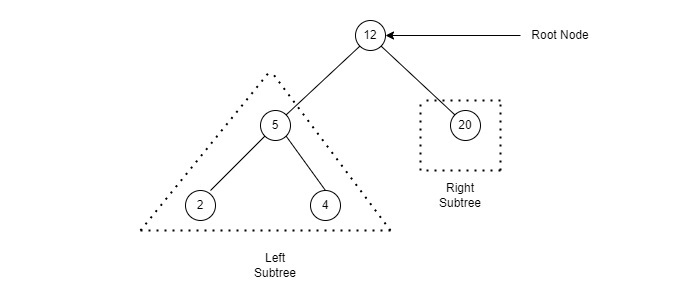
Following is a pictorial representation of BST −
Binary Search Tree
We observe that the root node key (27) has all less-valued keys on the left sub-tree and the higher valued keys on the right sub-tree.
Copied from here.

My Solution:

public class Node {
Node left, right;
int value;
public Node(int value) {
this.value = value;
}
public Node add(int value) {
if (value < this.value)
if (this.left != null)
return this.left.add(value);
else
return this.left = new Node(value);
if (value > this.value)
if (this.right != null)
return this.right.add(value);
else
return this.right = new Node(value);
return this;
}
public Node find(int v) {
if (this == null || v == value)
return this;
else if (value > v && this.left != null)
return left.find(v);
else if (value < v && this.right != null)
return right.find(v);
else
return null;
}
public int findSmallestValue() {
return this.left == null ? this.value : this.left.findSmallestValue();
}
public void traverseInOrder() {
if (this.left != null)
this.left.traverseInOrder();
System.out.print(" " + this.value);
if (this.right != null)
this.right.traverseInOrder();
}
public void traversePreOrder() {
System.out.print(" " + this.value);
if (this.left != null)
this.left.traversePreOrder();
if (this.right != null)
this.right.traversePreOrder();
}
public void traversePostOrder() {
if (this.left != null)
this.left.traversePostOrder();
if (this.right != null)
this.right.traversePostOrder();
System.out.print(" " + this.value);
}
}

Kariakoo Algorithm

Kariakoo dance asks every performer to follow a precise sequence of steps:
• Stage 0 : First, get away from obstacles by setting up your starting point at position 0
• Stage 1 : Take one step forward (+1 step)
• Stage 2 : Take two steps backward (-2 steps)
• To follow, the steps as well as the direction you will have to take in your next move will each time be obtained thanks to a specific calculation: the number of steps you took on the previous stage minus the number of steps you took on the penultimate stage.
That is, on stage 3, a dancer will have to take 3 steps backwards (-2 - 1).
At stage 3, the dancer is at position -4.
stage(n) = stage(n-1) - stage(n-2)
pos(n) = pos(n-1) + stage(n)
At stage 4, the dancer is at position -5.
enter image description here

Solution:

public class Kariakoo {
static final int NUMBER_OF_POSSIBLE_POSITIONS = 6;
final static int[] POSSIBLE_POSITIONS = { 0, 1, -1, -4, -5, -3 };
/**
* Computes the position of the Kariakoo​​​​​​​‌​‌‌​​​​​​‌​​‌‌​‌​​‌‌‌​‌
* dancer.
*/
static int getPositionAt(int n) {
return POSSIBLE_POSITIONS[n % NUMBER_OF_POSSIBLE_POSITIONS];
}
public static void main(String[] args) {
System.out.println(Kariakoo.getPositionAt(3)); // -4
System.out.println(Kariakoo.getPositionAt(100000)); // -5
System.out.println(Kariakoo.getPositionAt(2147483647)); // 1
}
}

Ma solution pour le problème de magasins

Enoncé :


Des magasins produisent tous les jours des fichiers de logs contenant les informations relatives à leur activité de vente journalière. De plus, chaque magasin possède son propre référentiel de prix journalier. Le fichier des transactions journalières contient ces infos:

 txId|datetime|magasin|produit|qte

Exemple:
1|20150302T223544+0100|2a4b6b81-5aa2-4ad8-8ba9-ae1a006e7d71|531|5
1|20150302T224008+0100|bdc2a431-797d-4b07-9567-67c565a67b84|55|3
1|20150302T224214+0100|72a2876c-bc8b-4f35-8882-8d661fac2606|39|8
2|20150302T225357+0100|29366c83-eae9-42d3-a8af-f15339830dc5|10|6
2|20150302T230721+0100|8e588f2f-d19e-436c-952f-1cdd9f0b12b0|773|2
2|20150302T231647+0100|bdc2a431-797d-4b07-9567-67c565a67b84|759|1
3|20150302T232938+0100|bf0999da-ae45-49df-983e-89020198330b|789|6
3|20150302T234000+0100|6af0502b-ce7a-4a6f-b5d3-516d09514095|520|5
3|20150302T234640+0100|29366c83-eae9-42d3-a8af-f15339830dc5|733|3
3|20150302T235351+0100|dd43720c-be43-41b6-bc4a-ac4beabd0d9b|985|9
3|20150303T000050+0100|bf0999da-ae45-49df-983e-89020198330b|307|1
3|20150303T001547+0100|6af0502b-ce7a-4a6f-b5d3-516d09514095|563|7
4|20150303T001635+0100|af068240-8198-4b79-9cf9-c28c0db65f63|733|8
4|20150303T001723+0100|72a2876c-bc8b-4f35-8882-8d661fac2606|54|1
4|20150303T001944+0100|af068240-8198-4b79-9cf9-c28c0db65f63|3|3
4|20150303T002931+0100|bdc2a431-797d-4b07-9567-67c565a67b84|124|8
4|20150303T003551+0100|6af0502b-ce7a-4a6f-b5d3-516d09514095|562|1
5|20150303T004132+0100|8e588f2f-d19e-436c-952f-1cdd9f0b12b0|266|3
6|20150303T005731+0100|2a4b6b81-5aa2-4ad8-8ba9-ae1a006e7d71|617|0
6|20150303T010831+0100|29366c83-eae9-42d3-a8af-f15339830dc5|617|3

où :
txId : id de transaction (nombre)
datetime : date et heure au format ISO 8601
magasin : UUID identifiant le magasin
produit : id du produit (nombre)
qte : quantité (nombre) prix : prix du produit en euros

Et celui du référentiel produit:
 produit|prix

Exemple:
1|63.19
2|23.86
3|12.19
4|9.54
5|23.76
6|14.46
7|32.94
8|96.28
9|8.53
10|77.43
11|17.64
12|34.52
13|59.87
14|62.25
15|92.13
16|42.4
17|52.54
18|89.37
19|80.54

20|19.41

Besoin : Déterminer, pour chaque heure, les 100 produits qui ont les meilleures ventes et ceux qui génèrent le plus gros Chiffre d'Affaire par magasin.

Télécharger la solution


Sunday, February 18, 2018

Configure Java_Home on Linux

  • Login to your account and open the startup script file which is usually ~/.bash_profile  file (or can be .bashrc depending on your envrionment settings)
$ vi ~/.bash_profile

In the startup script, set JAVA_HOME  and PATH

C shell:
setenv JAVA_HOME jdk-install-dir
setenv PATH $JAVA_HOME/bin:$PATH
export PATH=$JAVA_HOME/bin:$PATH
jdk-install-dir  is the JDK installation director, which should be something similar to /usr/java/jdk1.8.0_45/bin/java

Bourne shell:
JAVA_HOME=jdk-install-dir
export JAVA_HOME
PATH=$JAVA_HOME/bin:$PATH
export PATH

Korn and bash shells:
export JAVA_HOME=jdk-install-dir
export PATH=$JAVA_HOME/bin:$PATH

Type the following command to activate the new path settings immediately:
$ source ~/.bash_profile

Verify new settings:
$ echo $JAVA_HOME
$ echo $PATH

Thursday, January 4, 2018

The ultimate expression of power is self control


The ultimate expression of power is self control and your ability to be in absolute control of your emotions, thoughts and your entire being at all times is the ultimate display of your power.

I know the storm you are going through right now might be ferocious and you may feel the greatest of pain, anger, sadness and distress within but you must stand strong and know deep down inside that you are in complete control and will control the outcome if you take control of your own self.

You can't control what others will do or how they will act or what life throws at you but you can be in absolute control of your emotions and thoughts and actions.

You won't always get it right and sometimes you will lose your cool or be unsettled by life's challenges and lose control, even I sometimes slip but you must always be very aware of your power and your responsibility to act in a way that is aligned with your highest self and the outcome you truly want.

It doesn't matter the situation you find yourself in or how bad things may seem, If you can control the fear, the impatience, the negativity and the urge to act without thinking you can win and can absolutely control the outcome.

Feel the power within you, feel the rage, feel the uncertainty and the pain and then tame the beast within by being still, being calm and being in absolute control of yourself.

The ultimate expression of power is control and if you allow yourself to be calm within and be in complete control of yourself you will conquer your own fears, doubts and impatience and control the outcome in every situation and battle you face.

Display your power, be calm and trust that all will be well and everything will eventually fall into place if you just take control of your emotions, thoughts and actions.

Joe Duncan